There is something extra magical about stitching a face you love. A sleepy cat on a windowsill. A wedding photo your grandma keeps framed in the hallway. Your kid with frosting on their nose. Photo to pattern conversion makes it possible, and you do not need an art degree to do it. You just need a decent photo, a few smart settings, and permission to simplify until it is stitchable.
I am going to walk you through the whole process, from picking a photo to exporting a chart you can actually follow without squinting or losing your mind.
Start with the right photo
The software can only work with what you feed it. The best photo for cross stitch is usually not the most dramatic one. It is the clearest one.
What makes a photo stitch-friendly
- Good lighting: Natural light or even indoor light without harsh shadows. Deep shadows become weird blocks of dark stitches.
- Clear focus: Especially on the eyes if you are stitching a person or pet.
- Simple background: Busy backgrounds turn into confetti. A plain wall, a couch, sky, grass, or a soft blur is your friend.
- Big subject in the frame: If the face is tiny, you will need a huge pattern to keep details.
- High resolution: More pixels gives the converter more information. Cropping in close is fine, but try not to start with a tiny image.
Quick photo prep (worth the 3 minutes)
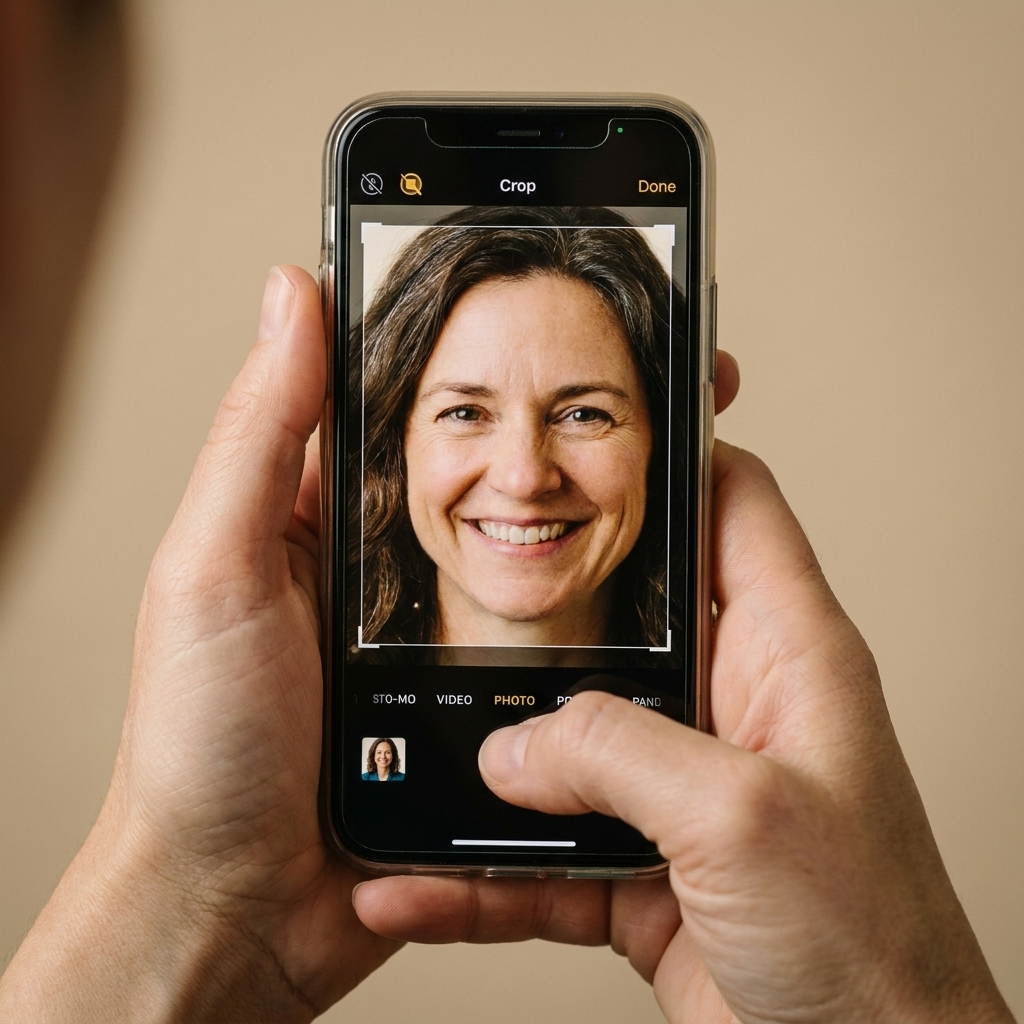
Before you upload anything into a generator, do these small edits on your phone or computer:
- Crop tightly around the main subject.
- Brighten slightly if the photo is dark.
- Increase contrast a touch so features separate clearly.
- Soften the background if your editor has a blur tool. If not, do not worry. We can simplify later.
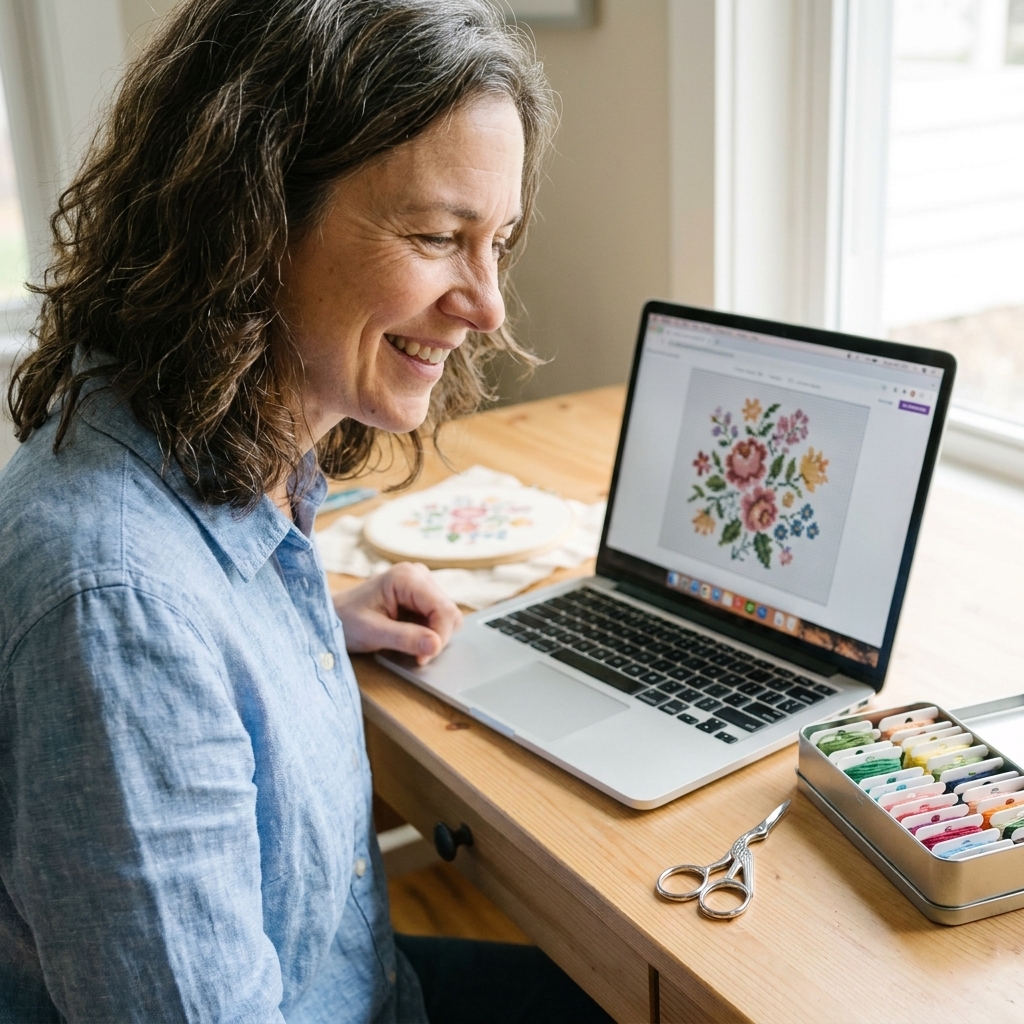
Choose your tool: generator vs software
You have two main routes:
- Online pattern generators that convert your photo quickly in a browser.
- Desktop software that gives you more control for cleanup and color management.
Online generators: fast and friendly
These are great when you want a quick proof of concept or you are making a small, simple design. Look for generators that let you control:
- Finished stitch count (width and height)
- Number of colors
- Palette type (DMC is the most common)
- Backstitch option or edge enhancement
- Export options (PDF chart, color blocks, symbol chart)
Heads up: some online tools produce charts that are technically correct but not very readable. If your symbols look like a cryptogram, that is a tool limitation, not a you problem.
Desktop software: more control, cleaner charts
If you want the best chance at a polished, stitchable portrait, desktop programs are often worth it, especially for faces and fur. Good software typically offers:
- Manual color editing and merging
- Dithering options (how pixels “mix” colors)
- Backstitch and fractional stitches (in some programs)
- Better printing and symbol sets
- Thread usage estimates
If you are brand new, you can start with an online generator, then graduate to software when you catch yourself saying, “I love this, but… the nose looks like a potato.”
The settings that matter most
When people get disappointing results, it is usually because of three settings: size, color count, and how the converter handles shading.
1) Pattern size (stitch count)
Detail requires stitches. If you want recognizable faces, you need enough pixels, and in cross stitch those pixels are stitches.
- Simple pet silhouette or bold graphic: 60 to 120 stitches wide
- Pet portrait with fur detail: 120 to 200 stitches wide
- Human portrait, clear likeness: 150 to 250 stitches wide (or more)
If you are stitching on 14 count Aida, a 180-stitch-wide design is about 12.9 inches wide. On 18 count, it is 10 inches. That is the sizing tradeoff in real life, not just on a screen.
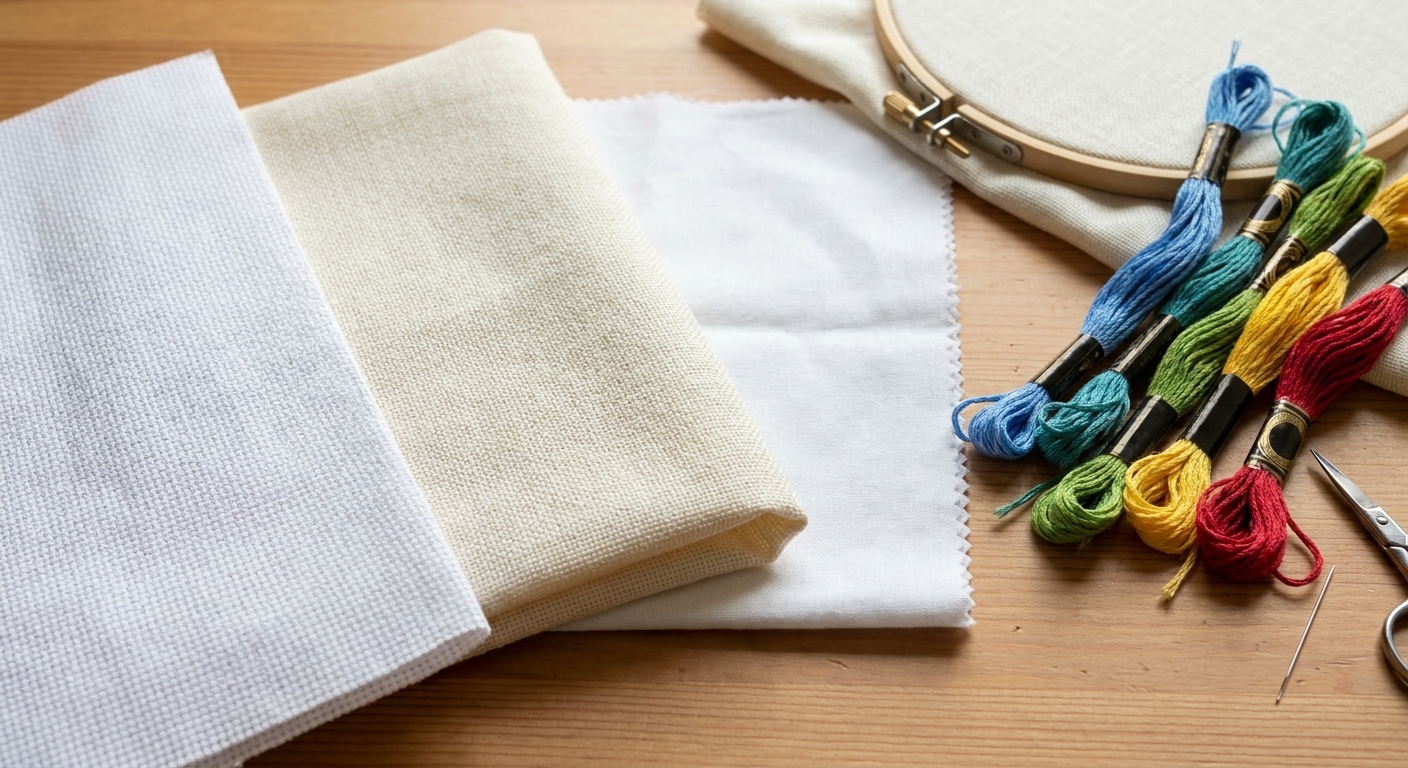
2) Fabric count and finished size
Pick your fabric count early because it affects everything, including how “blocky” the final image feels.
| Fabric | Look and feel | Why you might choose it |
|---|---|---|
| 14 count Aida | Chunkier pixels | Beginner friendly, easy to see |
| 16 count Aida | Smoother | Nice balance of detail and comfort |
| 18 count Aida | More detailed | Great for portraits, still manageable |
| Evenweave 28 count (over 2) | Refined | Portraits with a softer finish |
If you already own fabric and want the pattern to fit it, decide your stitch count based on the space you have. That is always less stressful than falling in love with a chart that does not fit your stash.
3) Number of colors
More colors can mean smoother shading, but it can also mean confetti stitching and a floss shopping list that makes your wallet sweat.
- Great starting point: 25 to 40 colors for portraits
- Cleaner, more graphic look: 12 to 25 colors
- Hyper-realistic (and high effort): 50+ colors
My practical rule: if you are going to gift it or frame it as a centerpiece, go higher. If you want it to actually get finished, go moderate.
4) Dithering and smoothing
Dithering is how software simulates shading by peppering colors together. It can make a portrait feel more realistic, but too much dithering creates confetti.
- If your preview looks grainy: reduce dithering or reduce colors, then manually merge similar shades.
- If your preview looks posterized: increase colors slightly or choose a different dithering method.
There is no “perfect” setting. The goal is readable stitches, not perfect pixels.
Step-by-step: convert your photo into a chart
This workflow works in most online generators and almost all desktop programs. The buttons may look different, but the order is the same.
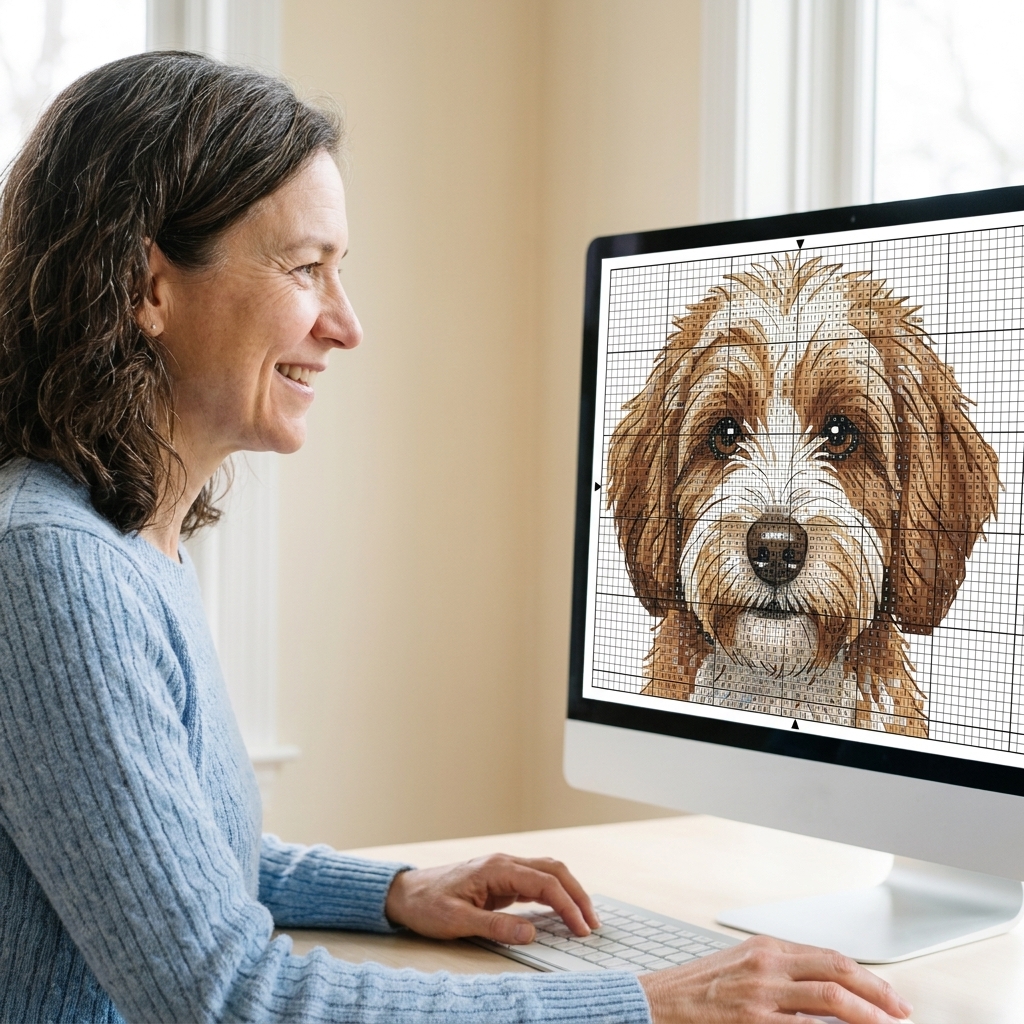
- Import the photo and crop to the subject.
- Set your target size in stitches first. Start with a width you can actually commit to.
- Select a palette (DMC is the easiest to source).
- Choose your color limit (start around 30 for a portrait).
- Generate a preview and zoom in to check eyes, mouth, and major edges.
- Adjust brightness or contrast inside the tool if available.
- Regenerate after each change. One tweak at a time keeps you sane.
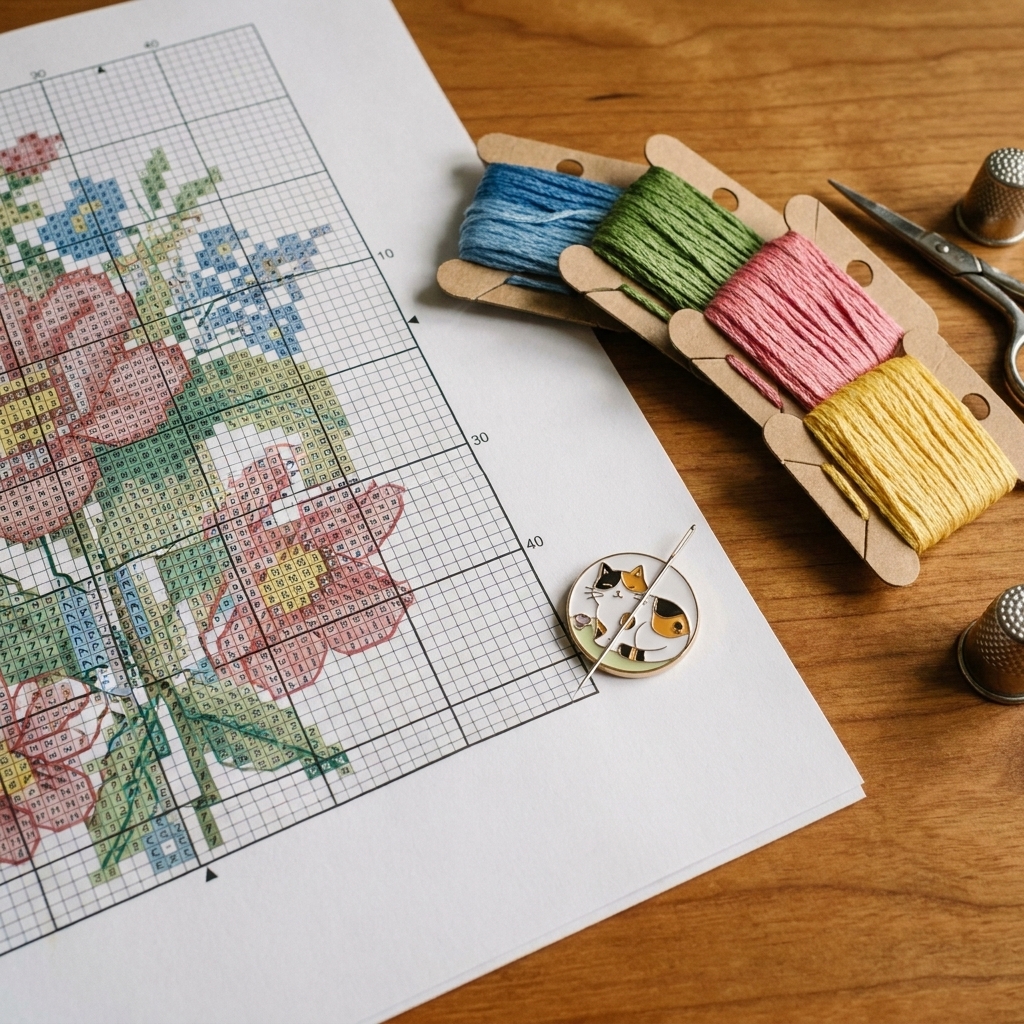
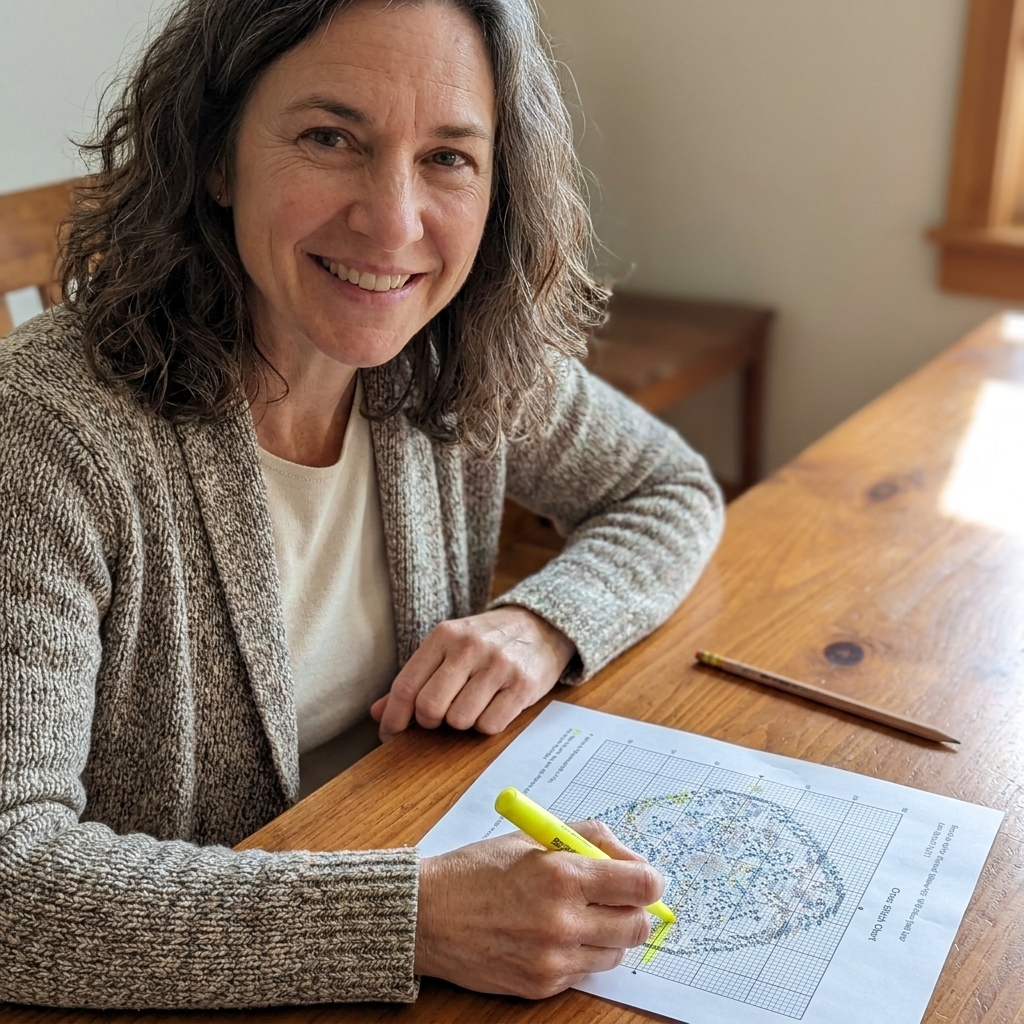
- Export a symbol chart and a color key. If the tool offers both color blocks and symbols, take both. Color blocks are great for planning, symbols are better for stitching.
Make it stitchable: cleanup tips that change everything
Auto-generated patterns often need a little tidying. This is the part nobody tells you about, and it is also where your project starts looking handmade in the best way.
Merge nearly identical colors
If your key includes five colors that all look like “slightly different beige,” merge them. Reducing similar shades:
- makes the chart easier to follow
- reduces confetti
- keeps facial features cleaner
Many programs let you substitute one color for another. If you are using a simpler generator, you can do this manually by deciding that two symbols will both be stitched with the same floss. Just write it clearly on your printed key so Future You does not panic.
Simplify the background
A portrait pops when the background is calm. Two easy options:
- Solid background: Pick one color (or leave it unstitched if you like the fabric showing).
- Soft gradient: Use 2 to 4 colors max and smooth large areas.
If the background is chaotic in the preview, it will be chaotic to stitch. You are allowed to delete it.
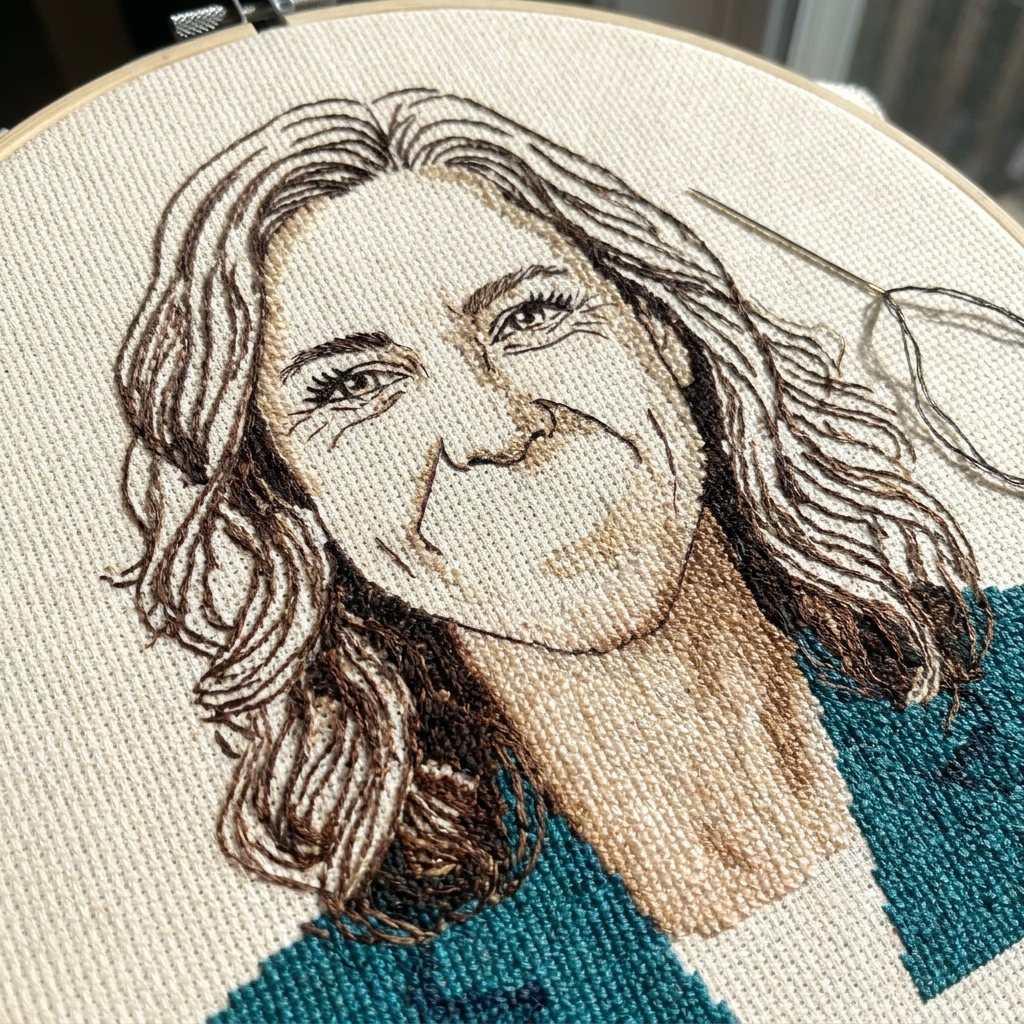
Sharpen important edges with backstitch
Backstitch is basically magic for portraits. Even a small amount can clarify:
- eyes and eyelids
- nostrils and mouth corners
- collar edges and whiskers
Use one strand for a delicate line. If your pattern tool cannot generate backstitch, you can add it yourself at the end by following the finished stitches like you are drawing with thread.
Watch out for “floating pixels”
Tiny single stitches of a color in the middle of nowhere are a classic conversion artifact. You can:
- change them to the surrounding color
- remove them if they are in the background
- keep them if they are doing real shading work (sometimes they are)
Pick floss like a pragmatic stitcher
Most generators map your colors to a standard palette like DMC. That is convenient, but you still get to make choices.
Do you need every single color in the key?
Not always. Before you buy floss, scan the thread usage estimate if your program provides it. If a color appears in 12 stitches total, consider swapping it with a neighbor shade you already own.
Skin tones, pet fur, and the “why does this look green?” problem
Converters sometimes drag skin or fur into odd undertones because of lighting in the original photo. If your preview looks a bit green or gray:
- try a warmer photo edit (slightly increase warmth)
- reduce the number of colors so the palette does not overcomplicate itself
- manually replace a strange shade with a more natural one in the same family
This is one of those areas where perfection is not required. A stitched portrait reads differently than a photo. Aim for “recognizable and lovely,” not “museum grade realism.”
Test before you commit to the whole thing
If you have ever spent two evenings stitching only to realize the face looks… off, you are not alone. A tiny test saves so much time.
Do a mini swatch
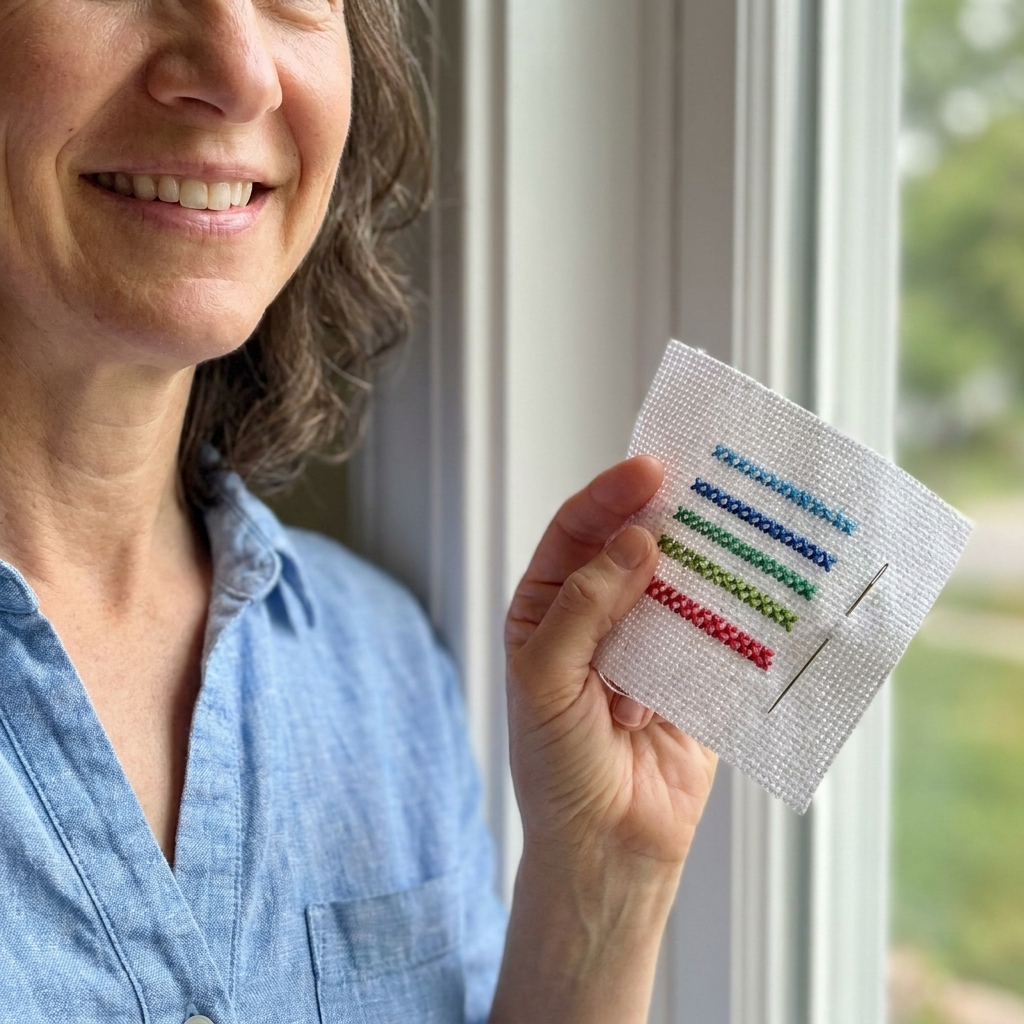
Pick a high-stakes section like an eye, the nose, or the mouth. Stitch a 20x20 or 30x30 area on scrap fabric (or the edge of your project fabric if you have generous margins). This helps you check:
- color accuracy in real thread
- how confetti-heavy the pattern feels
- whether details are readable at your chosen fabric count
Step back and squint
This sounds silly, but it works. Portraits are meant to be seen from a little distance. If it reads well from three feet away, you are golden.
Printing and stitching tricks for sanity
Print settings that help
- Print at 100% scale so the grid stays consistent.
- If symbols are tiny, print on letter or A4 but use “poster” or “tiled” printing to spread the chart over multiple pages.
- Consider printing both a symbol-only version and a color version.
Grid your fabric (optional, but comforting)
For large photo patterns, gridding is like bumpers at a bowling alley. You can grid with a washable marker or with a single strand of easy-to-remove thread. A 10x10 grid matches most charts.
Parking vs cross country stitching
If your pattern has a lot of color changes, parking (working one section and leaving threads ready) can reduce mistakes. If that sounds overwhelming, do not force it. Cross country works fine. The best method is the one you will keep doing.
Common photo pattern problems (and how to fix them)
The face looks muddy
- Increase the pattern size in stitches.
- Increase contrast in the photo before converting.
- Reduce similar mid-tone colors by merging them.
It looks pixelated and blocky
- Stitch on a higher count fabric (18 count instead of 14).
- Increase stitch count width.
- Add backstitch to define key features.
Too much confetti
- Lower the number of colors.
- Reduce dithering or choose a smoother method.
- Manually replace tiny isolated stitches with neighboring colors.
The chart is hard to read
- Use a symbol-only export if available.
- Print larger or tile across multiple pages.
- Use a magnetic line minder or a simple ruler to track rows.
Copyright and gifting: a quick, friendly note
If the photo is yours (you took it) or you have permission from the photographer, you are generally in a good place for personal use. If you are converting a professional studio photo, a school portrait, or an image you found online, it may be copyrighted even if it is easy to save. When in doubt, ask for permission, especially if you plan to sell the finished piece or the pattern.
FAQ
What is the best fabric count for photo cross stitch?
For portraits, I love 16 or 18 count Aida because it smooths out the “pixel” look without feeling too fussy. If your eyesight prefers bigger holes, 14 count is totally fine. Just plan a larger finished size for the same level of detail.
How many colors should I use for a pet or family portrait?
A solid sweet spot is 25 to 40 colors. It usually gives enough shading without turning into pure confetti. If you want a more graphic look, aim for 12 to 25.
Can I convert a photo into a pattern without buying expensive software?
Yes. Online generators can absolutely get you started, especially for smaller designs. If you find yourself wanting cleaner charts, easier color merging, or better symbol readability, then desktop software becomes worth considering.
Do I need backstitch for a photo pattern?
No, but it helps a lot. Backstitch can rescue eyes, define smiles, and make whiskers look like whiskers instead of random speckles.
My preview looks great on screen. Will it look the same stitched?
It will look similar, but thread has texture and shine, and cross stitch reads best from a little distance. That is why I recommend a small test swatch of the eye area or another detailed section before you commit.
A cozy final pep talk
Photo patterns are a little like baking bread. The first try teaches you more than any tutorial, and the second try is when you start feeling powerful. Give yourself room to experiment, simplify, and make it yours. Your goal is not to stitch a perfect photograph. Your goal is to stitch a memory you can hold in your hands.